

Everything you need to know about voicemail
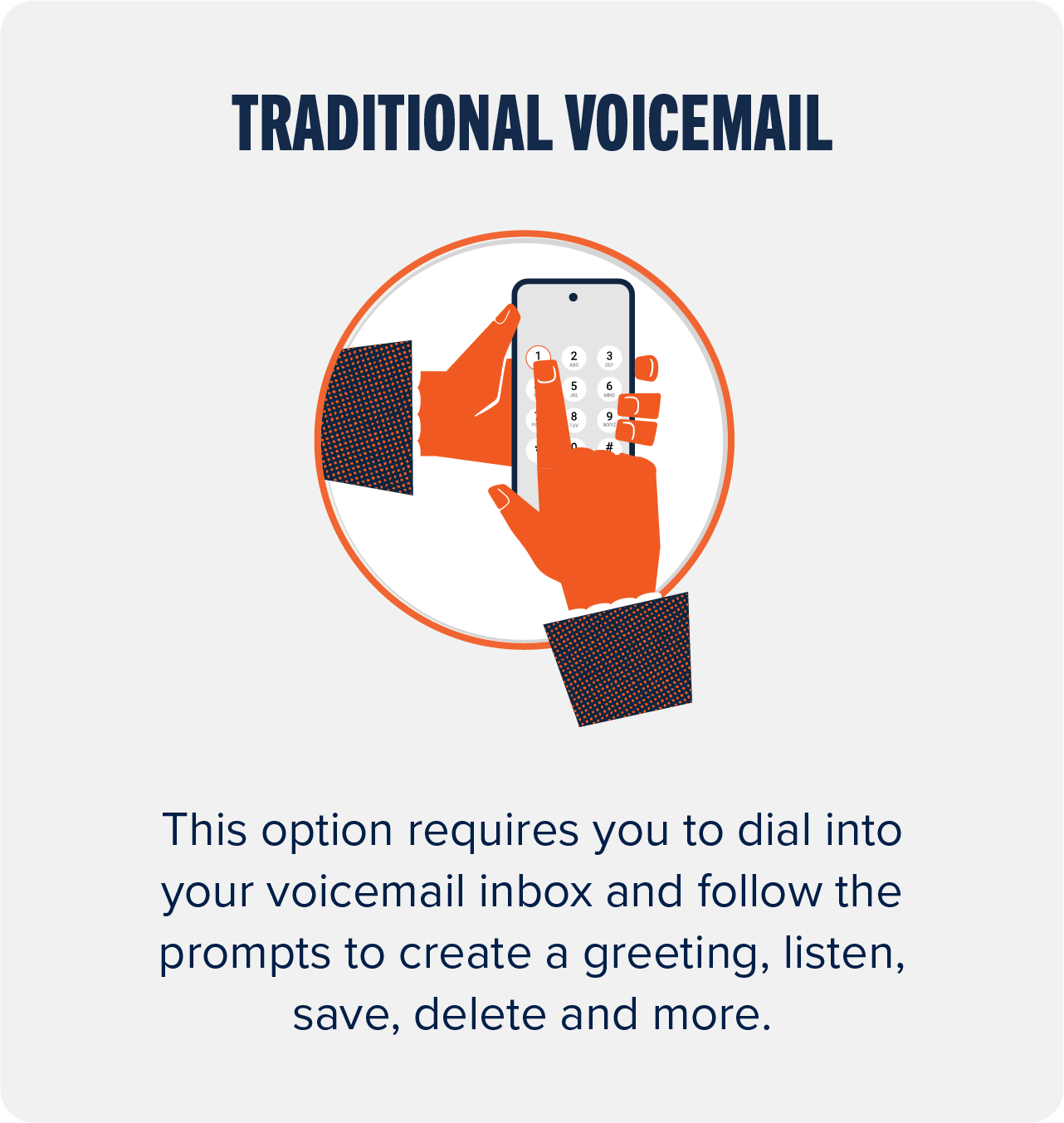
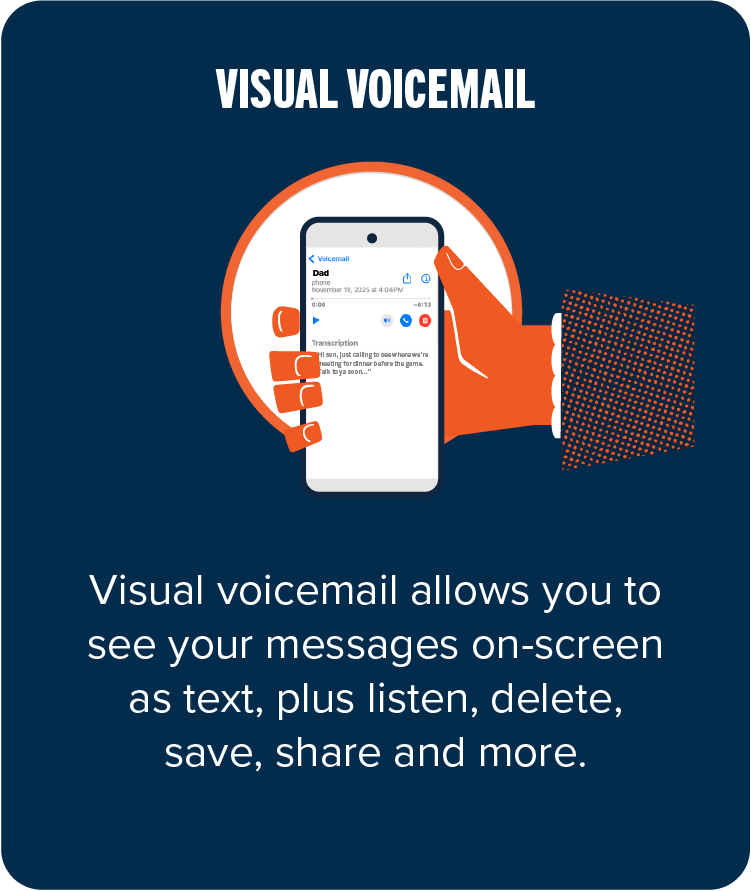
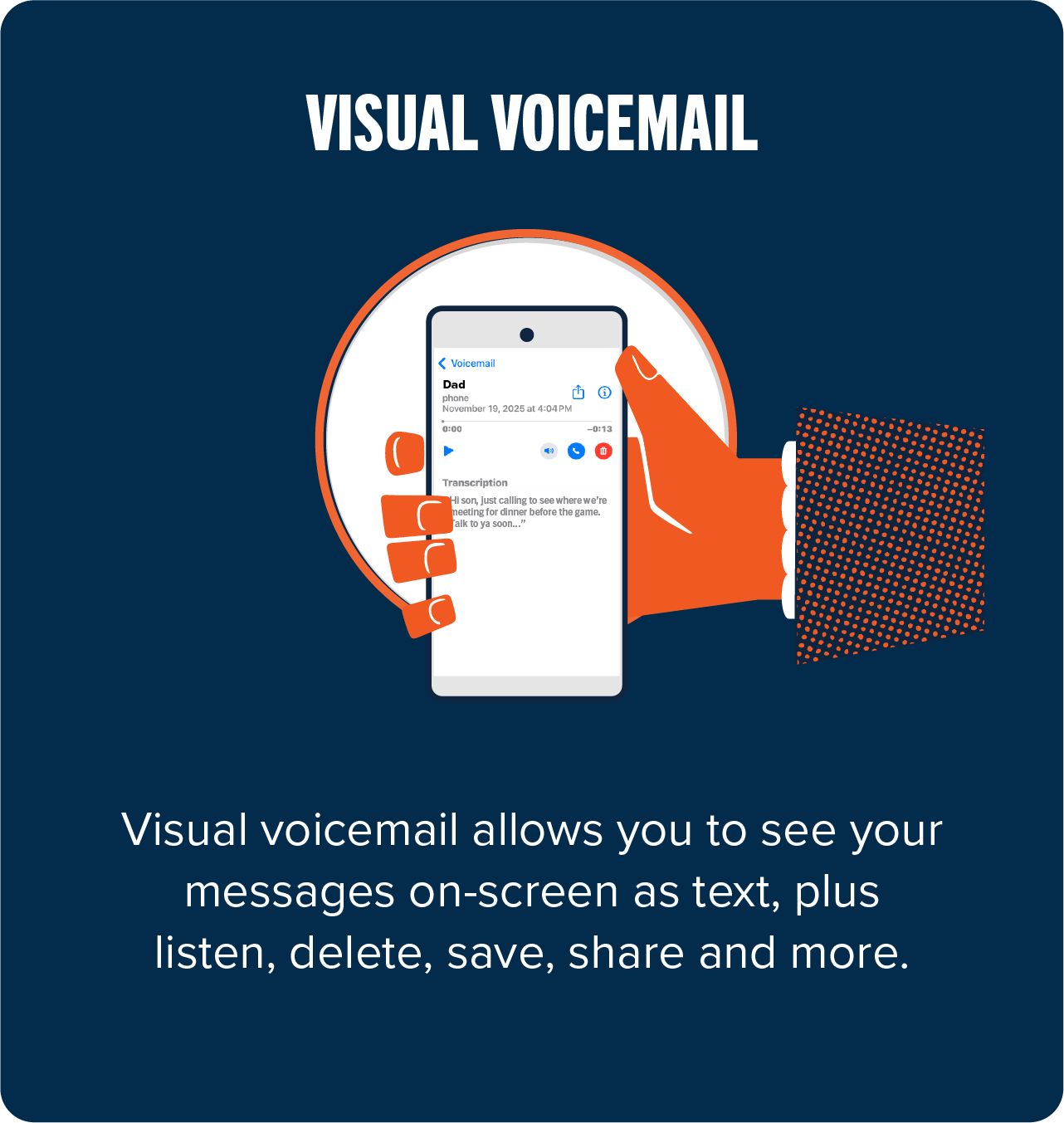
There's two main types of voicemail. Which type you have will largely depend on your device. Here's the two types:

Voicemail Tips
- Your PIN or passcode should be between 7-15 digits.
- Forgot your PIN or passcode? Reset it easily through our automated system by calling (888) 766-0921. Select 'Reset Voicemail Passcode' in the menu.
- If you’re having issues accessing your voicemail, please call (888) 766-0921 and one of our 100% U.S. based agents will be happy to help.
Traditional Voicemail Support
- Before you begin, please make sure you have turned off Wi-Fi.
- Press and hold ‘1’ on your keypad.
- Create a voicemail PIN or passcode that is between 7–15 digits.
- Follow the voice prompts to create a voicemail greeting. There are three types of voicemail greetings:
- Standard greeting with your phone number-
- Example: “Your call has been forwarded to an automated voice message system {Your Number} is unavailable. At the tone, please record your message. When you are finished recording, you may hang up or press 1 for more options.”
- Standard greeting your name-
- Example: “Your call has been forwarded to an automated voice message system {Your Name} is unavailable. At the tone, please record your message. When you are finished recording, you may hang up or press 1 for more options.”
- Personal greeting-
- Example: “{Your Message}. At the tone, please record your message. When you are finished recording, you may hang up or press 1 for more options.”
- Standard greeting with your phone number-
- Once you have saved your voicemail greeting, you are done.
Note: The only option for a flip phone is traditional voicemail, which can only be accessed by pressing and holding “1” on your keypad.
- Before you begin, please make sure you have turned off Wi-Fi.
- Open your Phone app.
- Press and hold ‘1’ on the keypad.
- Create a voicemail PIN or passcode that is between 7–15 digits.
- Follow the voice prompts to create a voicemail greeting. There are three types of voicemail greetings:
- Standard greeting with your phone number-
- Example: “Your call has been forwarded to an automated voice message system {Your Number} is unavailable. At the tone, please record your message. When you are finished recording, you may hang up or press 1 for more options.”
- Standard greeting your name-
- Example: “Your call has been forwarded to an automated voice message system {Your Name} is unavailable. At the tone, please record your message. When you are finished recording, you may hang up or press 1 for more options.”
- Personal greeting-
- Example: “{Your Message}. At the tone, please record your message. When you are finished recording, you may hang up or press 1 for more options.”
- Standard greeting with your phone number-
- Once you have saved your voicemail greeting, you are done.
Note: Traditional voicemail can only be accessed by pressing and holding “1” on your keypad in the Phone app.
Note: To access your traditional voicemail, always press and hold ‘1’ on your keypad or in your Phone app. Do not dial your voicemail number, as that number can often change. If you have your voicemail number saved in your contacts, please delete it; it will become out of date, and it is not a reliable way to access your traditional voicemail.
- Press and hold ‘1’ on your keypad.
- Enter your voicemail PIN or passcode.
- Follow the voice prompts.
- After listening to a message, you can:
- Press ‘7’ to delete the message.
- Press ‘8’ to replay the message.
- Press ‘9’ to save the message.
To see a complete list of actions you can take while listening to your messages on traditional voicemail click HERE.
Reminder: Traditional voicemail can only be accessed by pressing and holding “1” on your keypad in the Phone app.
- Open your Phone app.
- Press and hold ‘1’ on the keypad.
- Enter your voicemail PIN or passcode.
- Follow the voice prompts.
- After listening to a message, you can:
- Press ‘7’ to delete the message.
- Press ‘8’ to replay the message.
- Press ‘9’ to save the message.
To see a complete list of actions you can take while listening to your messages on traditional voicemail click HERE.
Reminder: Traditional voicemail can only be accessed by pressing and holding “1” on your keypad in the Phone app.
Note: Take a moment to read through the steps below before clicking the link in Step 4. The link will open in a new tab. So be sure to keep these steps in mind.
- Select your device.
- Scroll down to the Browse all support section.
- Click on Voicemail to view detailed tutorials for your device.
- When you are ready, click the link here to get started.
Visual Voicemail Support
- Before you begin, please make sure you have turned off Wi-Fi.
- Depending on your device, you may access your visual voicemail by going to the Phone app and clicking Voicemail, or by going to the Visual Voicemail app.
- Create a voicemail PIN or passcode that is between 7–15 digits.
- You will need to go to Settings, then Voicemail Greeting, in order to create a voicemail greeting. There are three types of voicemail greetings:
- Standard greeting with your phone number-
- Example: “Your call has been forwarded to an automated voice message system {Your Number} is unavailable. At the tone, please record your message. When you are finished recording, you may hang up or press 1 for more options.”
- Standard greeting your name-
- Example: “Your call has been forwarded to an automated voice message system {Your Name} is unavailable. At the tone, please record your message. When you are finished recording, you may hang up or press 1 for more options.”
- Personal greeting-
- Example: “{Your Message}. At the tone, please record your message. When you are finished recording, you may hang up or press 1 for more options.”
- Standard greeting with your phone number-
- Once you have saved your voicemail greeting, you are done.
- Before you begin, please make sure you have turned off Wi-Fi.
- Open the Phone app and tap Voicemail.
- Create a voicemail PIN or passcode that is between 7–15 digits.
- Click Greeting.
- You can select between a default and a custom greeting.
- Default greeting -
- Example: “Your call has been forwarded to voicemail. The person you are trying to reach is not available. At the tone, please record your message. When you have finished recording you may hang up.”
- Custom greeting -
- Example: “{Your Message}”
- Default greeting -
- Once you have saved your voicemail greeting, you are done.
- Depending on your device, you may access your visual voicemail by going to the Phone app and clicking Voicemail, or by going to the Visual Voicemail app.
- Enter your voicemail PIN or passcode.
- Click the message you would like to listen to.
- You will have options on the screen to play, save, delete, share, and more.
- Open the Phone app and click Voicemail.
- Enter your voicemail PIN or passcode.
- Click the message you would like to listen to.
- You will have options on the screen to play, save, delete, share, and more.
Bonus Pro Tip: Some iPhones offer Live Voicemail, a feature that lets you automatically see a real-time transcription as someone is leaving you a message. To turn on Live Voicemail, go to Settings > Apps > Phone. Tap Live Voicemail and then turn it on.
Note: Take a moment to read through the steps below before clicking the link in Step 4. The link will open in a new tab. So be sure to keep these steps in mind.
- Select your device.
- Scroll down to the Browse all support section.
- Click on Voicemail to view detailed tutorials for your device.
- When you are ready, click the link here to get started.




Need Help?

Don't Miss Out
Sign up for the latest deals, product news, and more from Consumer Cellular.
By submitting this information, you agree to receive recurring marketing materials through email. If you prefer not to receive marketing communications from us, please follow the unsubscribe links on any email message. View our Privacy Policy and Terms of Service.

My Account
Log in to manage your account, pay bills online, or take advantage of other options in My Account.